
Adafruit GFX is the layer nearly every Arduino display library sits on top of. Adafruit_SSD1306, Adafruit_ILI9341, Adafruit_ST7735, the e-paper libraries and dozens of third party drivers all inherit from it, which is why the same drawLine call works on a 128x64 monochrome OLED and on a 320x240 colour TFT.
The catch is that the drawing functions live in the base class while the colours, the constructor and the buffer behaviour come from the driver. That split is where most of the confusion comes from. This guide covers the whole API in one place.
How the Layers Fit Together
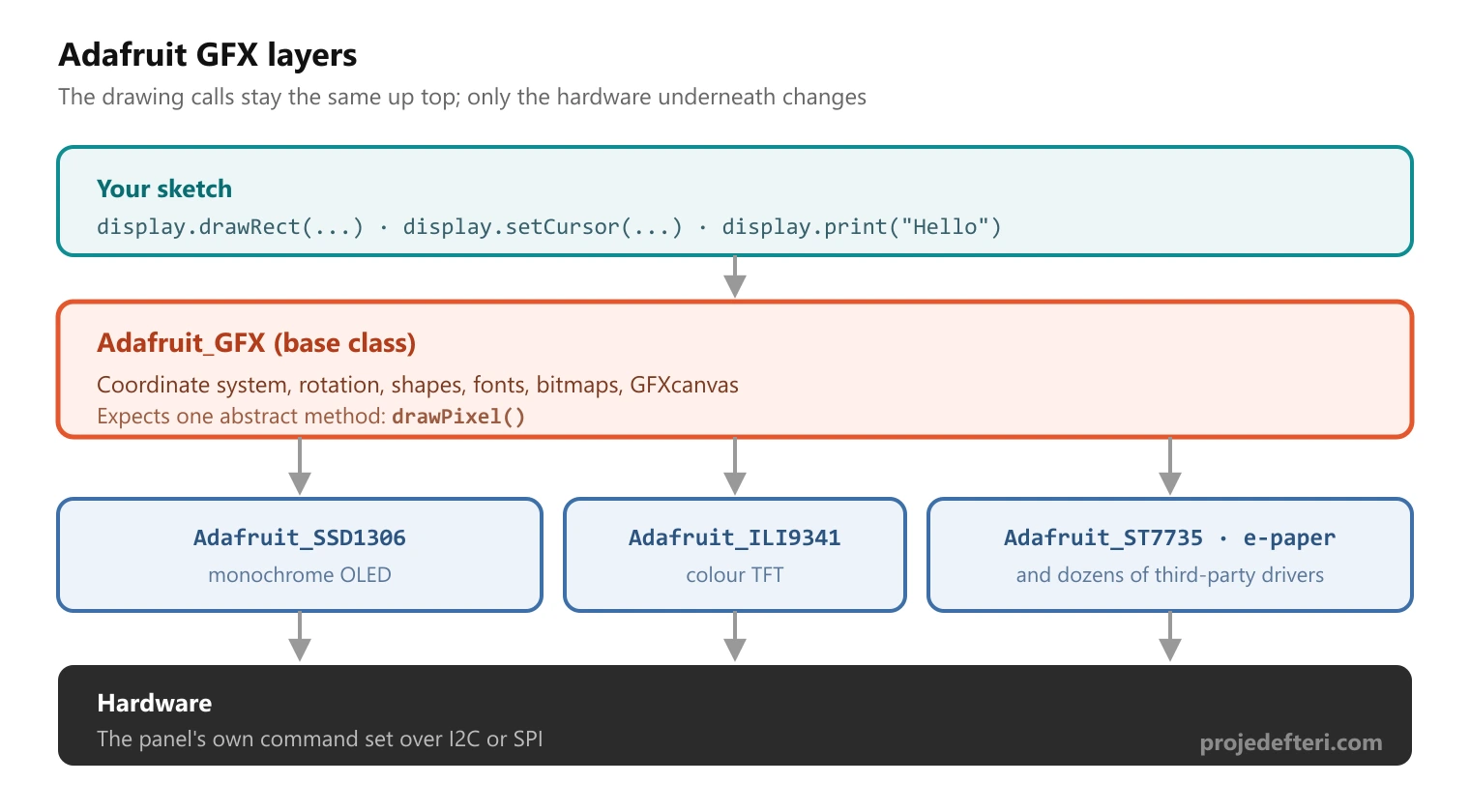
You always install two libraries: Adafruit GFX Library plus the driver for your specific panel. Installing only the driver produces a Adafruit_GFX.h: No such file or directory error.
The Coordinate System
The origin is the top left corner. x grows right, y grows down. There is no negative clipping error: anything drawn outside the panel is silently discarded, which makes scrolling animations easy to write.
tft.width()      // current width, changes with rotation
tft.height()     // current height, changes with rotation
tft.setRotation(0);  // 0, 1, 2, 3 = 0, 90, 180, 270 degrees
setRotation swaps width and height on the odd steps. Read them back with width() and height() rather than hardcoding, otherwise a rotated layout falls apart.
Colour
This is the part people get wrong when moving between panels.
| Panel type | Colour argument | Example |
|---|---|---|
| Monochrome OLED / LCD | 1 = on, 0 = off | SSD1306_WHITE, SSD1306_BLACK |
| Colour TFT | 16 bit RGB565 | ILI9341_RED, 0xF800 |
On a colour panel you build a value with color565():
uint16_t orange = tft.color565(255, 140, 0);
tft.fillRect(0, 0, 60, 40, orange);

// or hardcode the precomputed constant, which is faster and smaller
#define ORANGE 0xFC60
0x.... constant, shows you what the panel will actually print after quantisation, and hands you the color565() call.The Full Function Reference
Pixels and lines
| Function | What it does |
|---|---|
drawPixel(x, y, color) | One pixel. The only function a driver must implement. |
drawLine(x0, y0, x1, y1, color) | Line between two points. |
drawFastHLine(x, y, w, color) | Horizontal line, faster than drawLine. |
drawFastVLine(x, y, h, color) | Vertical line, faster than drawLine. |
Rectangles
| Function | What it does |
|---|---|
drawRect(x, y, w, h, color) | Outline. |
fillRect(x, y, w, h, color) | Filled. |
drawRoundRect(x, y, w, h, r, color) | Rounded outline, r is the corner radius. |
fillRoundRect(x, y, w, h, r, color) | Rounded and filled. |
fillScreen(color) | Fills the whole panel. |
Circles and triangles
| Function | What it does |
|---|---|
drawCircle(x, y, r, color) | Outline, x and y are the centre. |
fillCircle(x, y, r, color) | Filled. |
drawTriangle(x0,y0, x1,y1, x2,y2, color) | Outline. |
fillTriangle(x0,y0, x1,y1, x2,y2, color) | Filled. |
Text
| Function | What it does |
|---|---|
setCursor(x, y) | Top left of the next character with the built in font, baseline with a custom font. |
setTextColor(color) | Transparent text, background untouched. |
setTextColor(fg, bg) | Draws the background too, which overwrites the old value cleanly. |
setTextSize(n) | Integer pixel scaling, 1 to 8. No smoothing. |
setTextWrap(bool) | Wrap at the right edge, on by default. |
setFont(&font) | Switch to a custom GFX font. setFont() with no argument returns to the built in one. |
print() / println() | Standard Print interface, so print(23.4) works. |
getTextBounds(str, x, y, &x1, &y1, &w, &h) | Measures a string before drawing it. |
getTextBounds is the function people miss. It is how you centre text:
int16_t x1, y1;
uint16_t w, h;
tft.getTextBounds("23.4 C", 0, 0, &x1, &y1, &w, &h);
tft.setCursor((tft.width() - w) / 2, (tft.height() - h) / 2);
tft.print("23.4 C");
Bitmaps
| Function | Data | Use with |
|---|---|---|
drawBitmap(x, y, bmp, w, h, color) | 1 bit per pixel | Monochrome panels |
drawBitmap(x, y, bmp, w, h, fg, bg) | 1 bit per pixel | Draws the background too |
drawXBitmap(x, y, bmp, w, h, color) | 1 bit, XBM bit order | Bitmaps exported as XBM |
drawGrayscaleBitmap(x, y, bmp, w, h) | 8 bit | Grayscale panels |
drawRGBBitmap(x, y, bmp, w, h) | 16 bit RGB565 | Colour TFTs |
drawBitmap and Color RGB565 for drawRGBBitmap.Note the type difference: a 1 bit bitmap is const unsigned char[], an RGB565 bitmap is const uint16_t[]. Mixing them compiles but draws garbage.
Always mark the array PROGMEM. A 320x240 RGB565 image is 153,600 bytes and will not fit in RAM on any Arduino.
Fonts
The built in font
The default is a 5x7 glyph in a 6x8 cell, plain ASCII, scaled with setTextSize(). It costs almost nothing and looks blocky at size 2 or above, because scaling multiplies whole pixels.
Custom GFX fonts
The GFX library ships with the Free* families in Fonts/:
#include <Fonts/FreeSans9pt7b.h>
#include <Fonts/FreeSansBold12pt7b.h>
#include <Fonts/FreeMono9pt7b.h>
#include <Fonts/FreeSerif12pt7b.h>

tft.setFont(&FreeSans9pt7b);
tft.setCursor(0, 20);          // careful: y is now the BASELINE
tft.print("Proper typography");

tft.setFont();                 // back to the built in font
setCursor(x, y) sets the top left of the text. With a custom GFX font it sets the baseline, which is roughly the bottom of the letters. Passing y = 0 with a custom font puts the text above the screen, so it looks like nothing was drawn. That is the single most common GFX bug.Custom fonts are also proportional, so setTextWrap and getTextBounds matter more, and each font costs a few kilobytes of flash.
Making your own font: fontconvert
The GFX repository has a fontconvert folder with a small C program that turns a TTF into a GFX header:
cd Adafruit-GFX-Library/fontconvert
make
./fontconvert /path/to/MyFont.ttf 12 > MyFont12pt7b.h
The number is the point size. Put the generated header next to your sketch and #include it. By default it converts ASCII 32-126; pass a start and end codepoint to widen the range:
./fontconvert MyFont.ttf 12 32 255 > MyFont12pt7b.h
Note that each glyph you add costs flash, so widening to 255 roughly doubles the size of the font.
Flicker-Free Drawing with GFXcanvas
On a colour TFT there is no frame buffer: every draw call writes straight to the panel. Redraw a changing value and you see the old text erase and the new one appear, which reads as flicker.
GFXcanvas1 and GFXcanvas16 give you an off-screen buffer to compose into, which you then push in one operation:
GFXcanvas16 canvas(120, 30);       // 120 * 30 * 2 = 7200 bytes of RAM

void updateReading(float value) {
  canvas.fillScreen(ILI9341_BLACK);
  canvas.setFont(&FreeSansBold12pt7b);
  canvas.setCursor(0, 22);
  canvas.setTextColor(ILI9341_GREEN);
  canvas.print(value, 1);

  tft.drawRGBBitmap(100, 60, canvas.getBuffer(), 120, 30);
}
The RAM cost is the catch: GFXcanvas16 needs width * height * 2 bytes, so this is an ESP32 or RP2040 technique. GFXcanvas1 needs only width / 8 * height and is usable more widely.
A cheaper alternative that needs no RAM at all: draw the text with a background colour so it overwrites itself.
tft.setTextColor(ILI9341_GREEN, ILI9341_BLACK);
tft.setCursor(100, 60);
tft.print(value, 1);
tft.print("   ");     // pad, or the tail of the previous longer value stays
Common Problems
Adafruit_GFX.h: No such file or directory
You installed the driver but not the base library. Install Adafruit GFX Library from the Library Manager as well.
Nothing appears on a monochrome OLED
Buffered drivers such as Adafruit_SSD1306 only write to RAM. You have to call display.display() to push the buffer. Colour TFT drivers do not need this, which is why the same code behaves differently on the two panel types.
Text is invisible after setFont()
The y in setCursor became the baseline. Give it at least the font height.
The old value shows through the new one
Transparent text is the default. Either clear the area first with fillRect, or use the two argument setTextColor(fg, bg).
A shorter number leaves a digit behind
23.4 written over 123.4 only overwrites five characters. Pad the string, or clear a fixed rectangle before printing.
Colours look wrong or inverted on a TFT
Byte order. Some drivers expose setSwapBytes(); some panels are BGR rather than RGB and need the driver’s own configuration flag. Red and blue swapping is the classic symptom.
The bitmap is skewed diagonally
The width you passed to drawBitmap does not match the width the array was generated at. For 1 bit bitmaps the width should also be a multiple of 8, otherwise each row is padded and the image shears.
Frequently Asked Questions
Does Adafruit GFX work with an ESP32? Yes, it is board independent. For colour TFTs on an ESP32 many people prefer TFT_eSPI because it is considerably faster, though it has its own API rather than the GFX one.
How much flash does GFX cost? The base library itself is small, a couple of kilobytes. Custom fonts and bitmaps are what actually fill the flash: one FreeSans12pt7b is several kilobytes and one 128x64 bitmap is 1024 bytes.
Can I use it with a monochrome and a colour panel in one sketch? Yes. Instantiate both drivers and call the same GFX methods on each. Just keep the colour constants straight: SSD1306_WHITE is 1, ILI9341_WHITE is 0xFFFF.
Where is the official documentation? Adafruit publishes a Doxygen reference and a written guide on their learning site. This page is a condensed practical version of the same API.
Related Tools and Reading
- image2cpp - generate the arrays for
drawBitmapanddrawRGBBitmap - RGB565 Color Converter - build the colour constants
- U8g2 Font List - the alternative font ecosystem
- Arduino OLED SSD1306 tutorial - GFX applied end to end